
Train with workout mode
Workout mode walks you through the session one step at a time, counts your sets and your rest, and keeps the screen awake so you can leave the phone alone.
Workout mode walks you through the session one step at a time, counts your sets and your rest, and keeps the screen awake so you can leave the phone alone.
Open the session and tap START WORKOUT. You can start any session that is still to do and has exercises in it, not only today's.
If you have a paired watch that is already running this workout, the button reads OPEN LIVE VIEW instead, and the two stay in step with each other.
The kind of block is at the top, with the round you are in when the exercise repeats, in sets or in a circuit. Then the sketch, the exercise name, its cue and its target. Tap the row to open the full explanation without losing your place.
Above the buttons at the bottom, NEXT names the step after this one, with a small sketch of it when it is an exercise.
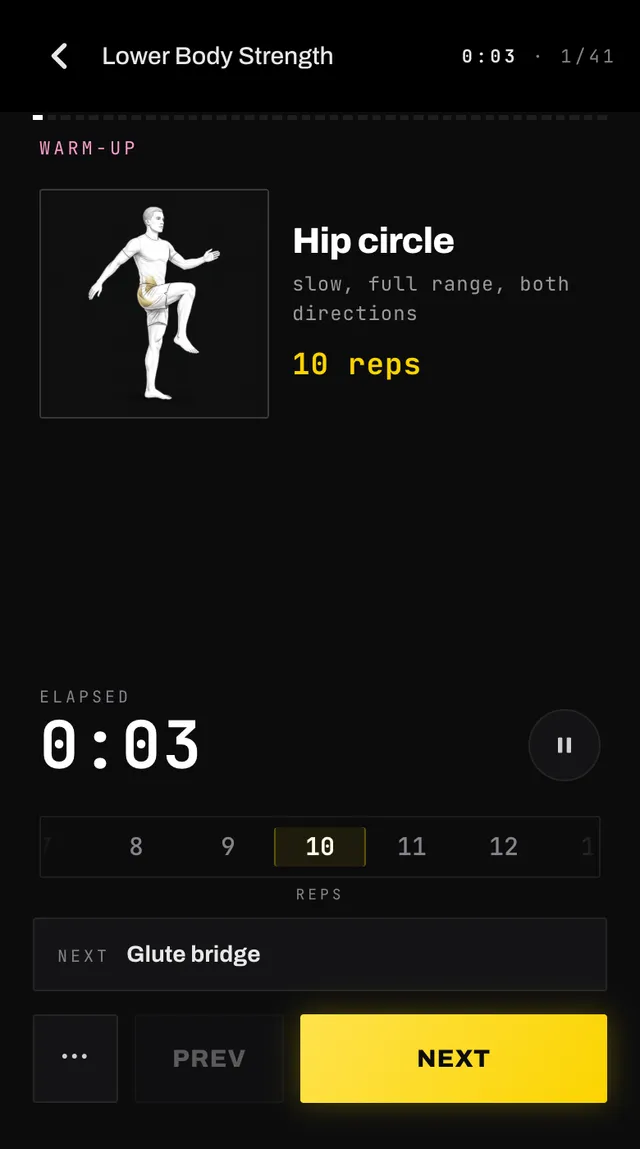
A step with a time target counts down and the label reads TIME LEFT. Everything else counts up under ELAPSED and waits for you. Run past a countdown and the number turns gold and shows the overtime rather than stopping.
You can lock your phone and the timer keeps going. Put it in your pocket for a twenty minute run and the time still counts. The round button beside the clock is the only thing that stops it, and while it is paused no time is counted at all. If you leave your phone for a long stretch we only count what the step could plausibly have taken, so a workout you forgot about does not turn into a three hour session.
Tap NEXT and a panel slides up for the exercise you have just finished, with wheels for reps, weight and distance, in your own units. Distance appears on anything set as a distance and on a timed run, row, ride or swim, so a three minute jog asks how far you got. Timed work with a kettlebell, dumbbell or wall ball asks for the weight instead of the reps (a hold or a carry does not). The wheels start on what you entered for the previous round of the same exercise. On a first set they start on the coach's target reps or distance and the heaviest weight you used in your last workout. So most sets need no input at all: tap SAVE and you move on.
Some steps have nothing to log, so NEXT moves straight on. Rests, holds like a plank, and stretches have no panel. Nor does a step that Auto advance or your watch moves on for you, or the one you are on when you choose Mark as done: those record the coach's target and your weight from last time. On race day there is no panel at all, because your splits are the record. A race simulation asks after every segment.
NEXT records the time you spent on the step and moves on when you save. PREV goes back and restarts that step's timer, replacing its earlier split. On the last step the button reads FINISH. A quick second tap is ignored, so a double tap cannot skip an exercise.
An exercise done one side at a time, like a Bulgarian split squat or a stretch held 40 seconds each side, is two steps: LEFT, then RIGHT, each with its own timer. The side shows in a small tag under the sketch, on that side of it: LEFT under its left edge, RIGHT under its right edge. NEXT and the List show it too, so on the left side NEXT reads the same exercise with RIGHT beside it. The target is for one side, so 8 reps means 8 on the left and then 8 on the right.
Each side gets its own logging panel. The first right side starts on what you just entered for the left, so if both sides matched you only tap SAVE; in later rounds each side starts on its own previous round. Both sides are kept, as two rows under the same exercise.
Moves where you swap legs as you go, like walking lunges, alternating curls or dead bugs, stay one step: you alternate, so there is no left half and right half to time.
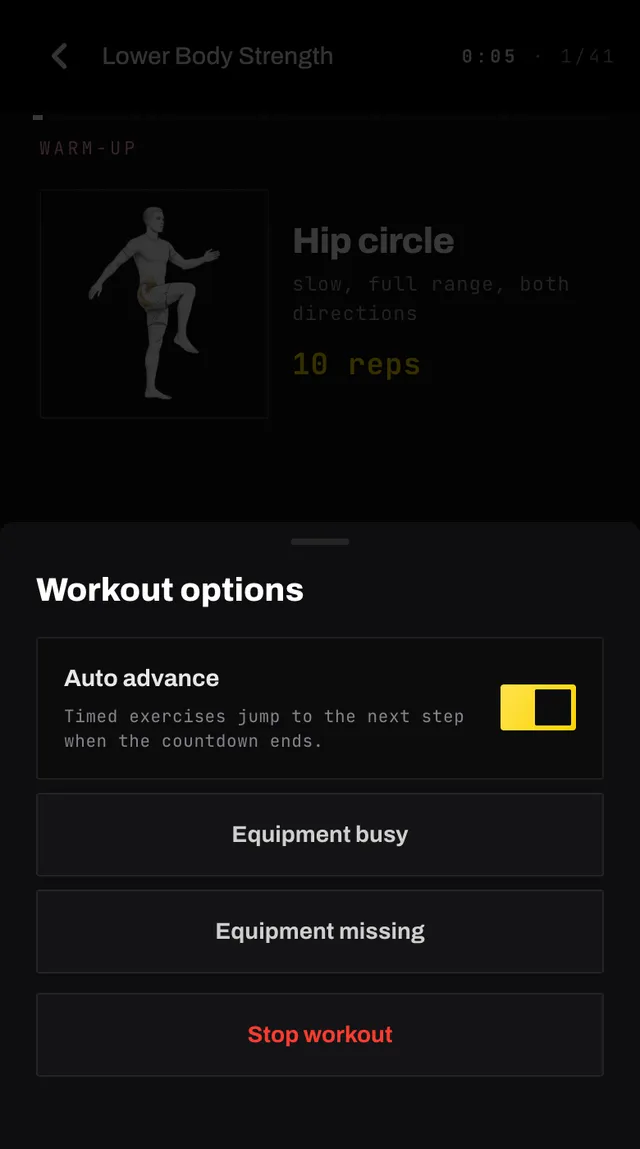
A row of symbols sits above PREV and NEXT. Each one opens a panel. Sound and Auto advance glow gold when they are on: Sound when either of its two switches is.
FINISH on the last step asks how hard it felt straight away, with your total time on the screen behind it. Your workout is not saved until you send that check-in, so if you close it the screen underneath keeps a SAVE WORKOUT button to bring it back.
Saving opens the celebration — your time, your effort, your sessions this week, the sets you saved on the logging panel and a line from your coach — and tapping DONE there is what takes you back to the workout. SHARE beside it makes a picture of the session to post or send, which Mark a workout done describes.
Saving on your watch finishes here too. Once the watch has sent the workout (after you answer its effort question, if it asks one), the phone shows the same celebration with the watch’s time and effort, SHARE included, and keeps the reps and weights you logged on the phone.
Stop workout asks what you want to keep. Leave and resume later is the one on top: it keeps your place for when you come back. Mark as done logs the session with the time and splits you have so far and opens the usual check-in. When your coach plans the weeks ahead, it counts only the part of the workout you did. Discard progress throws the attempt away and leaves the session in your plan as a workout still to do.
After Mark as done, the celebration reads WORKOUT LOGGED rather than WORKOUT COMPLETE, and your coach’s line knows you stopped: it counts what you did and says nothing about the rest, whichever tone of voice you chose.
Going back asks the same question. The arrow at the top left, your phone’s back button and the swipe-back gesture all open that same panel rather than leaving mid-workout, so a stray press cannot drop you out of a session you are in the middle of. Once the workout is finished, back saves it instead.
Your progress lives on one phone. It is stored on the device you started on and kept for 24 hours. It does not follow you to a tablet or a second phone.
A rewritten workout cannot be resumed. If the session changes while you are mid-run, a sheet offers to let you finish the one you started or begin again on the new version. Nothing is decided behind your back.
Open the app, go to You, and tap the feedback row at the bottom. It reaches a person, not a queue. Or write to hello@smashcoach.app.