
Mark a workout done, or undo it
Finishing a session asks you one question. Undoing one throws the whole attempt away, which is worth knowing before you tap it.
Finishing a session asks you one question. Undoing one throws the whole attempt away, which is worth knowing before you tap it.
The chip appears on today and on past days. If you trained with workout mode, the same sheet opens by itself when you finish, so there is nothing extra to do.
One slider, from one to ten, with a word beside it that moves from VERY EASY through MODERATE and HARD to MAX EFFORT. Drag the knob. It starts at seven.
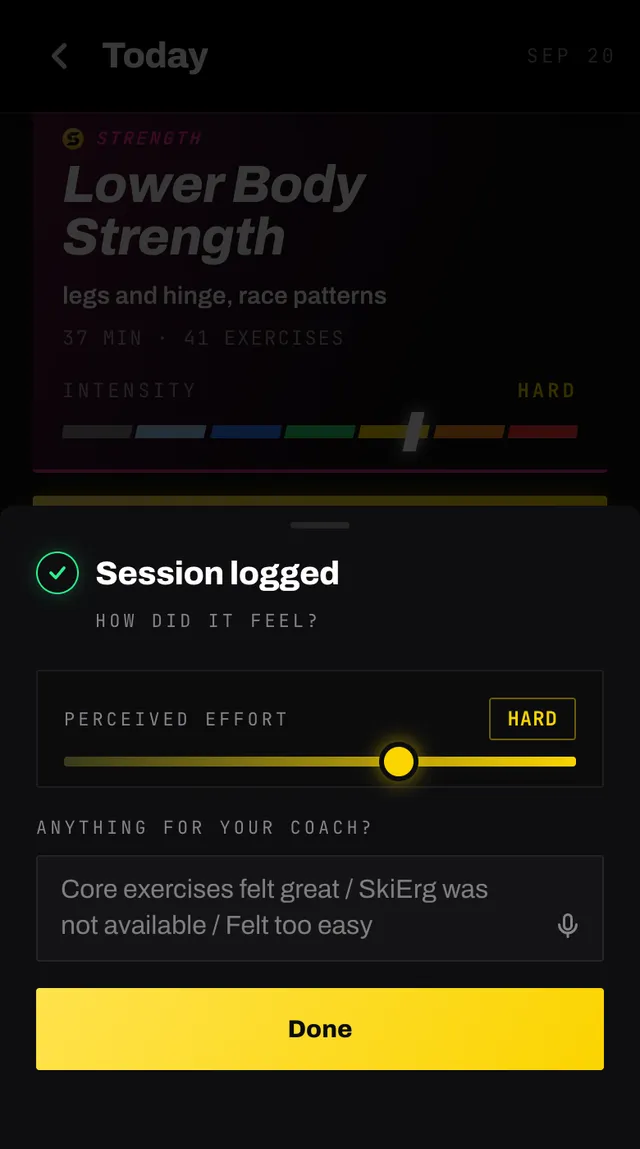
Under ANYTHING FOR YOUR COACH, tell it what the numbers cannot: the rower was taken, your shoulder complained, it was far too easy. You can dictate it with the microphone instead of typing. Then tap Done.
Once it saves, the app gives the session back to you in full: WORKOUT COMPLETE, the name of what you trained, and up to four tiles — your time, the effort you just set, how many sessions you have done this week, and a measurement if the session asked you for one, or after workout mode the sets you logged. Your coach adds a line of its own underneath.
A set there is one you saved on the logging panel with reps or a weight. A jog or a calorie count on a rower is not a set, both sides of a move done on each side are one, and an exercise the app moved past for you (Auto advance, your watch) is not counted, because nobody checked its numbers.
If you stopped early in workout mode and chose Mark as done, it reads WORKOUT LOGGED instead, and your coach’s line counts what you did and says nothing about the rest.
Only things that actually happened are on it. A time is shown as TIME TRAINED when workout mode or your watch measured it, and as MIN PLANNED when nothing did, because marking a session done by hand does not time it. Tap DONE to carry on, or SHARE beside it to make a picture of the session.
Tap SHARE on that screen, or the Share chip on any finished session later, first in its row of chips. That chip is the way in if you finished on your watch with the phone put away. A race day or a simulation has its own Share chip on its race page once it is done. On a session that is not done yet, the chip tells you it can be shared once it is.
Share this session shows a preview of exactly the picture that will go out, and one switch, Background. On, you get a dark story picture with the Smash Coach logo, ready to post. Off, you get a see-through picture of the logo and your numbers, to lay over a photo of your own. Each number sits in an outlined box and every letter has a thin dark edge, so it reads on a bright photo as well as a dark one.
On it: the sport and the session name, the date, the effort word, and whichever of these were measured: time, distance, total lifted, sets, average heart rate and, on a run, pace. Never on it: the planned time, how much of the session you did or that you stopped early, your sessions this week, or your coach’s line, which can mention an injury.
SHARE opens your phone’s own share sheet, so where the picture goes is up to your phone and your apps. SAVE IMAGE beside it saves the picture to your phone instead (on an iPhone or iPad it opens the picture full size: press and hold it to save it to your photos). If your phone cannot share a picture from the app, the big button reads SAVE IMAGE, and where your phone can copy a picture, COPY IMAGE sits beside it. CLOSE at the bottom puts the sheet away.
Nothing is uploaded. The picture is made on your phone and goes only where you send it.
The session gets a WORKOUT COMPLETED chip, and the training effect and goals are replaced by what actually happened.
DETAILS starts closed too, with the number of blocks beside it. Open it for how hard the session was meant to be, your coach's note for the day, and the exercise list.
Open the completed session and tap Mark as undone. The confirmation is blunt on purpose: the session moves back to your plan as a workout to do, and everything you recorded for it is cleared so the next attempt starts fresh.
What goes:
What stays: the workout itself. The exercises, rounds, cues and targets are untouched, so it comes back exactly as a session to do.
The reason it works this way is that a second attempt on top of a first would render as a mixture of the two, and neither number would mean anything.
Open the app, go to You, and tap the feedback row at the bottom. It reaches a person, not a queue. Or write to hello@smashcoach.app.