
Read a workout
Tap any day in Home or Agenda to open the session. Everything you need before you start is on that one screen, in the order you need it.
Tap any day in Home or Agenda to open the session. Everything you need before you start is on that one screen, in the order you need it.
The header names the day rather than the date, so it reads Today, Tomorrow or Yesterday where that is clearer, with the date on the right.
Under it sits the session title, the part of your training it serves, and a line giving the estimated time and the number of exercises. That estimate is added up from the exercises themselves, so it moves if you edit the session. A move done on each side, like a stretch held 40 seconds a side, counts both sides.
The INTENSITY row underneath is the effort the session is written for, shown as a word on a colour scale. It is a plan for how hard this should feel, not a measurement of how hard it was.
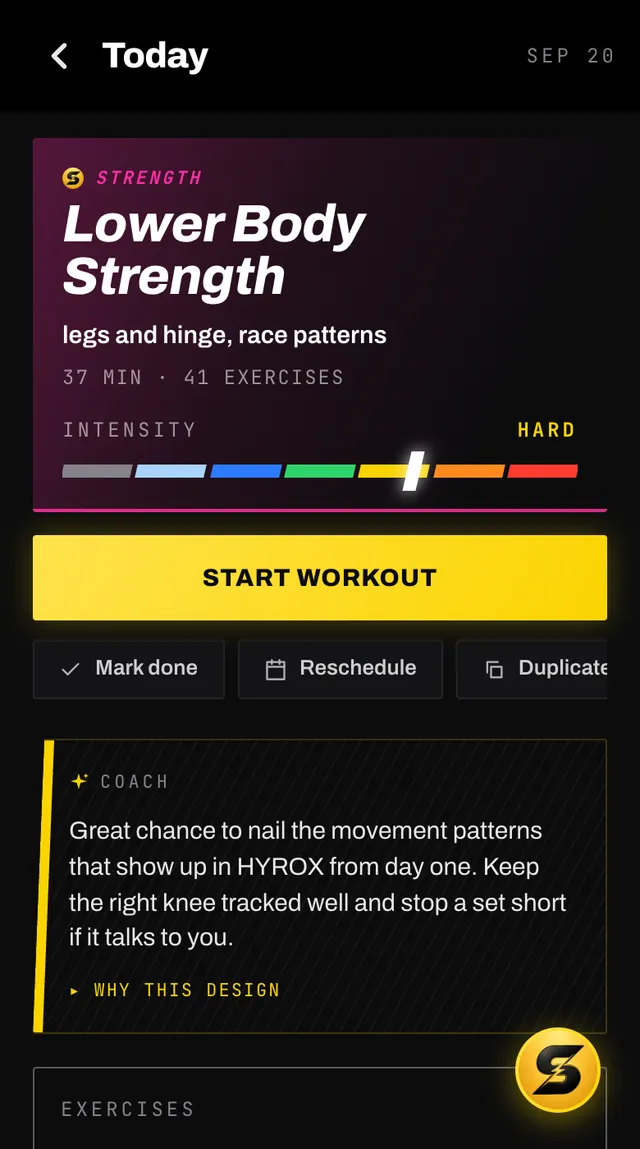
Under the start button is a row of chips. Which ones appear depends on the session.
Once a session is done the row changes: Share moves to the front, and Mark as undone replaces the ones that no longer apply. A skipped session offers Unskip, which puts it straight back without asking, and Log as done.
The gold card under the chips is your coach talking about this particular session. Tap WHY THIS DESIGN to open the reasoning behind it, and the assumption it made if it had to make one. The label flips to HIDE REASONING while it is open.
Each row carries a sketch, the kind of block on the left, the target on the right, the exercise name, and a short cue under it. Rest rows sit in the list as their own entries, so the time between sets is part of the session rather than something you guess.
A move done one side at a time keeps one row, with per side after its target, as in 0:40 per side: do that much on the left and the same again on the right. Workout mode runs it as a left step and then a right step.
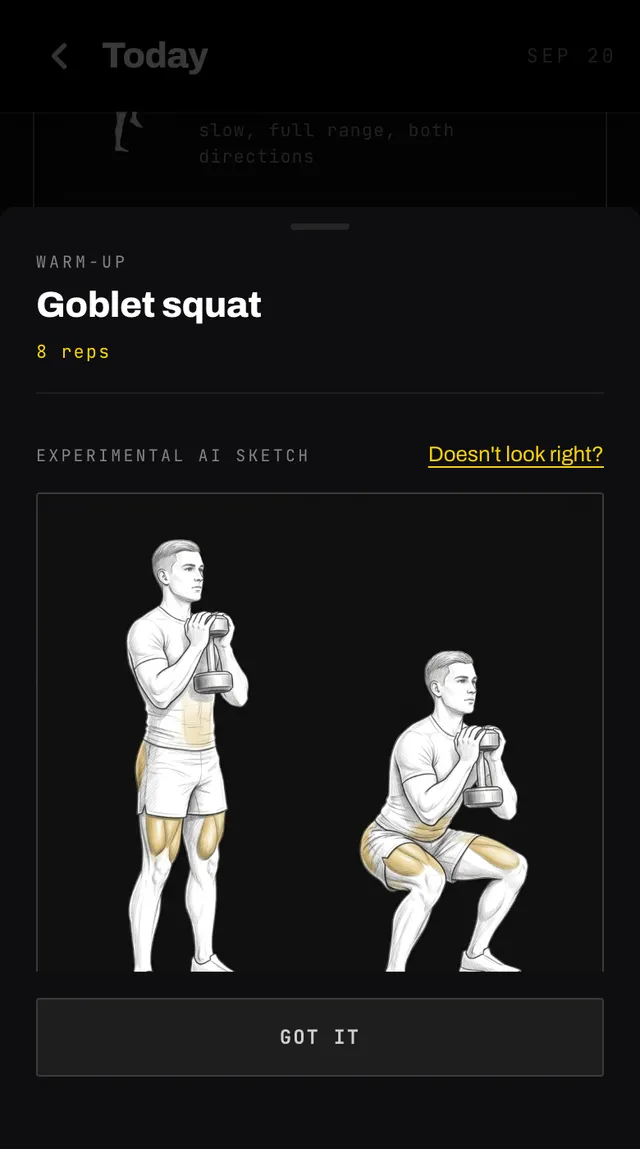
The sheet gives the rounds and the target on one line, the sketch at full width, and a written description of how to do the movement. Pinch the sketch with two fingers to zoom in. Tap GOT IT to close.
Below the list, CONTRIBUTES TO shows the goals this session serves, or your next event if it serves the race directly. TRAINING EFFECT breaks the session into endurance, strength, balance and mobility, so you can see what a session is actually buying you.
Both disappear once a session is done, and stats and splits take their place. That is covered on the page about marking a workout done.
A future day with no session reads Recovery is training. Let the week's work land. That is deliberate, not a gap. You can still add a session to it.
In a week that came back with fewer coach sessions than you asked for, an empty day ahead reads Not planned yet instead, on Home too: that one is a gap, and your coach is looking at it.
A past day with nothing reads Nothing was scheduled or logged on this day. If you trained, you can still add it. The button under it logs a session on that date.
Open the app, go to You, and tap the feedback row at the bottom. It reaches a person, not a queue. Or write to hello@smashcoach.app.