
Share a workout with a friend or a class
Any upcoming workout from your coach can be shared as a QR code or a link. Whoever opens it sees the whole workout and can add it to their own plan, free.
Any upcoming workout from your coach can be shared as a QR code or a link. Whoever opens it sees the whole workout and can add it to their own plan, free.
The chip sits in the row under the workout, on today and on any day ahead, and under today's workout on Home. A sport or class you added yourself has no exercises to share, so it has no Share chip.
Share this workout shows a QR code with the workout’s name, its date and a short code such as 4KX-9QZ. Tap the QR code to fill the screen with it, ready for a friend’s camera or a screenshot on a gym screen. Send link opens your phone’s share sheet for WhatsApp, Messages or anywhere else.
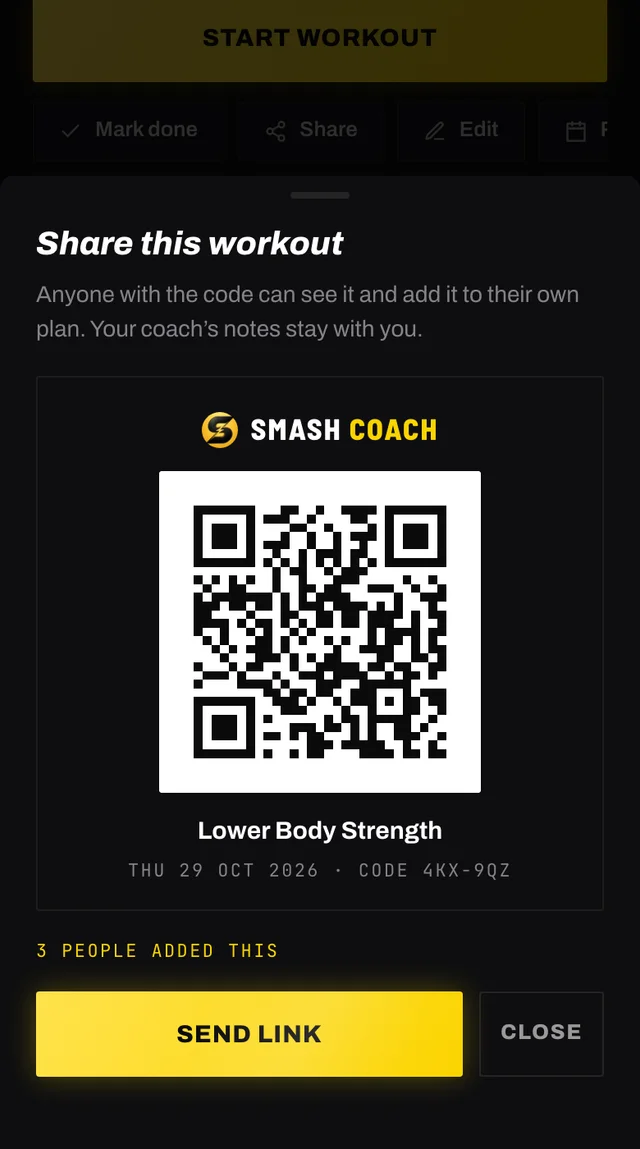
The shared page reads “Shared by” and your first name. Once anyone adds the workout, the sheet counts how many people did.
Your coach’s notes stay with you. A shared workout carries the exercises, amounts, rests and rounds, nothing your coach wrote to you, so a workout shaped around an injury does not say so. What you share is a copy: change your session later and theirs stays as it was.
A code works for 90 days. After that the page says the workout isn’t shared any more; anyone who already added it keeps it. Share the session again for a new code.
Your phone’s camera opens the workout in your browser, whole, with a picture beside each exercise where there is one, and no account needed, so you can follow it there and then.
New to Smash Coach? You set up your plan first, and the workout is waiting at the end. Already signed in there, or did the link open in the app? This step is skipped: you go straight to Add to my plan.
The day is at the top, under When will you do it?, above the exercises. It starts on the day it was shared for, so you can train together, or today if that day has passed. If you already have a class that day, such as a HYROX class, you can use it for that class instead of adding a second session.
On an iPhone with the app on your home screen, the camera opens Safari, which is not signed in to your app. Open Smash Coach instead, tap +, then Add a shared workout, and type the code printed under the QR code.
The added workout is yours. Your coach plans the rest of your week around it and leaves it as it is, and it goes to your watch like any other session.
No workout is shared under this code. The person who shared it stopped sharing, or a character was mistyped. Codes never use 0, O, 1, I or L, so a character that looks like one of those is a different one.
Sharing isn’t switched on yet. The feature is still being turned on. Try again later.
Open the app, go to You, and tap the feedback row at the bottom. It reaches a person, not a queue. Or write to hello@smashcoach.app.