Skip to content

Turn on notifications

Your coach sends one short note each morning at 8:00 with your plan for the day, checks in at 21:00 if a session is still open, and tells you when a plan you asked for is ready. On iPhone and iPad, this needs the app on your Home Screen.

From Home

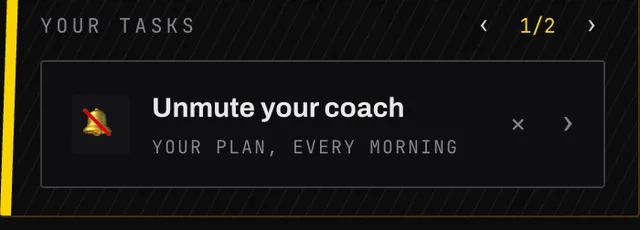
  1. On Home, under Your tasks, tap Unmute your coach.
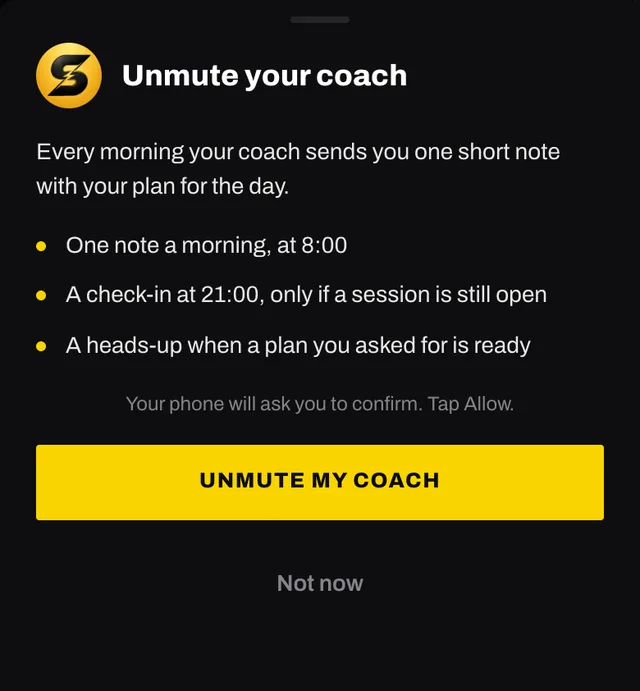
  2. Read what your coach will send, then tap Unmute my coach.
  3. Your phone asks you to confirm. Tap Allow.

A welcome notification arrives straight away, so you can see what they look like. Not ready yet? Tap the ✕ on the task and it comes back in a week.

The Unmute your coach task on Home, under Your tasks
The Unmute your coach sheet: one note a morning at 8:00, a check-in at 21:00 only if a session is still open, a heads-up when a plan is ready, and the Unmute my coach button

From Settings

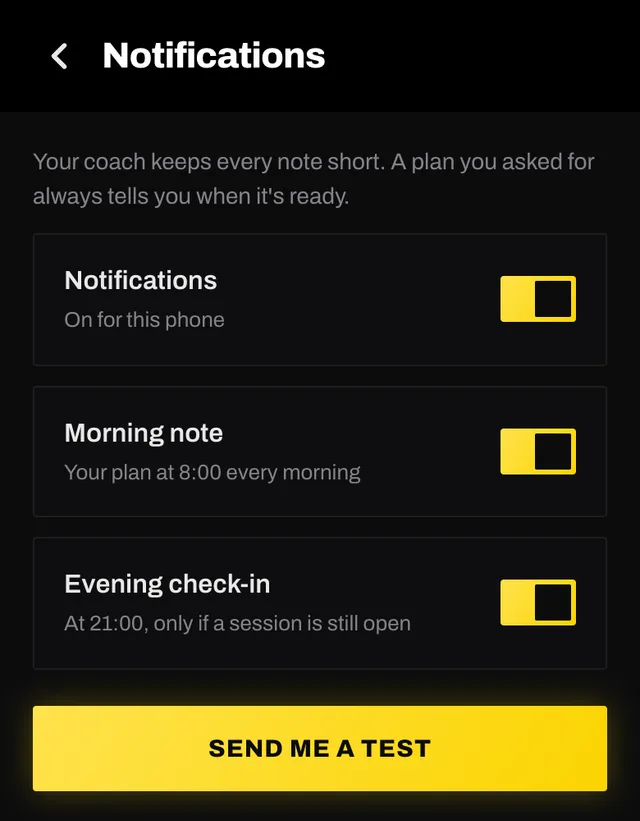
On You, open Settings, then Notifications, and turn on the Notifications switch at the top. Once it is on, Send me a test shows you one straight away.

Settings, Notifications: the Notifications switch on for this phone, the Morning note and Evening check-in switches, and the Send me a test button

What you get

A morning note at 8:00 your time, with what is on your plan today, or on a rest day the next session coming up. Days with more than one session list them all. Its first line is your coach's own, about yesterday's session or today's.

An evening check-in at 21:00, only when a session that day is still open, so you can mark it done, skip it or move it. On a day you have already ticked off, there is nothing to ask and nothing arrives.

A heads-up when a plan you asked for is ready, so you can lock your phone while it is written.

Turn Morning note or Evening check-in off in Settings, Notifications to stop either one. The plan heads-up stays.

A notification names the sport and how long it takes, never what the session is called and never anything about your health, because your lock screen is something other people can see.

When it does not work

“Notifications are blocked” (in Settings: “Blocked in your phone's settings”) means your phone was told no. Undo it where the phone keeps it:

  • iPhone and iPad: open Settings, tap Notifications, then Smash Coach, and turn on Allow Notifications.
  • Android, installed: press and hold the Smash Coach icon, tap App info, then Notifications, and turn them on.
  • Android, in the browser: tap the icon to the left of the address bar, then Permissions, and allow Notifications.

“Install the app first” means you are in Safari on an iPhone or iPad. Add Smash Coach to your Home Screen, open it from there, and turn them on.

Turned on, but nothing arrives? Tap Send me a test. If that does not show either, check that Focus or Do Not Disturb is off, and that battery saving is not holding notifications back.

Common questions

How many notifications will I get?
One morning note a day, an evening check-in only on a day a session is still open, and a heads-up when a plan you asked for is ready. You can switch the morning note and the check-in off in Settings and keep the heads-up.
Why did I not get a note this morning?
There is no morning note when nothing is planned for the week ahead. If your phone was off at 8:00, the note waits for it until about noon and is then dropped, so you never get a good morning in the afternoon.
Can I change the time?
Not yet. The morning note comes at 8:00 and the check-in at 21:00 wherever you are, following your phone's time zone, so they move with you when you travel.
Why did my coach check in when I had already trained?
The check-in reads what is marked in the app. Mark the session done, skip it or move it, and the coach has nothing left to ask that day.
Do I need to turn them on on every phone?
Yes. Notifications are switched on phone by phone, and signing out turns them off on that phone. The Morning note and Evening check-in switches apply to every phone at once.

Still stuck

Open the app, go to You, and tap the feedback row at the bottom. It reaches a person, not a queue. Or write to hello@smashcoach.app.